Getting your business ready for FBR digital invoicing does not have to be complicated. FBRSTAPP is designed to take you from your very first login to submitting live, FBR-compliant invoices in a clear, guided path. Follow these seven steps and you will be fully set up — from the sandbox testing phase all the way to production.
Step 1: Log in to FBRSTAPP
Start by logging in to your FBRSTAPP account at fbrstapp.com. If you do not have an account yet, registration only takes a minute — enter your business details, NTN/CNIC, and contact information to get started.
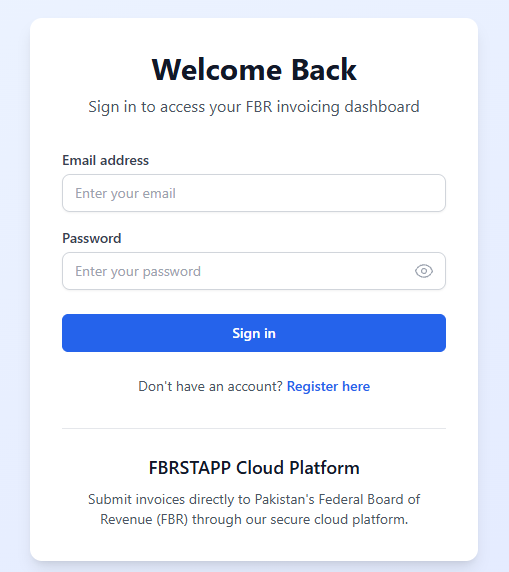
Step 2: Complete the FBR Digital Invoicing Wizard and Get Your Sandbox API Key
Next, log in to the FBR Digital Invoicing portal and complete the registration wizard.
First choose Pakistan Revenue Automation (PRAL) as Integrator.
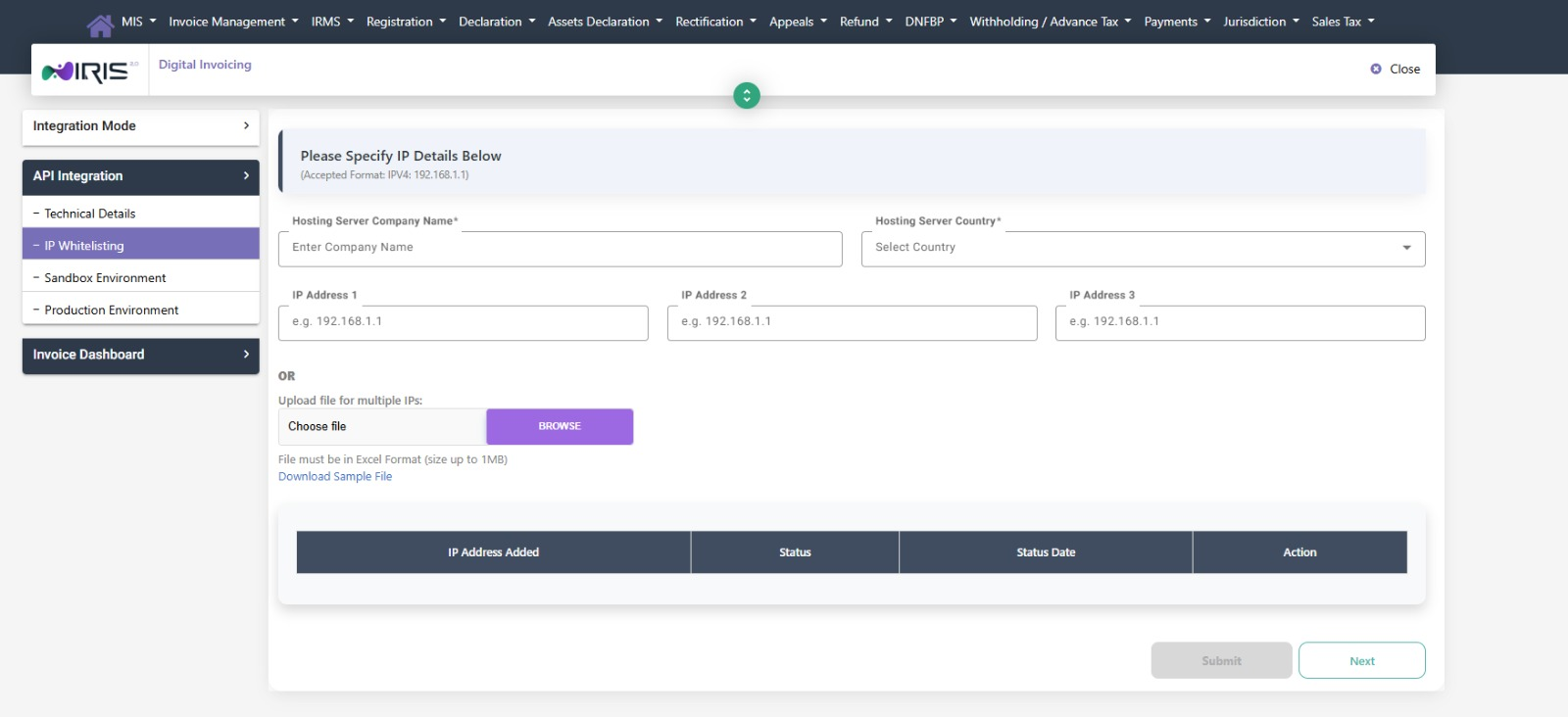
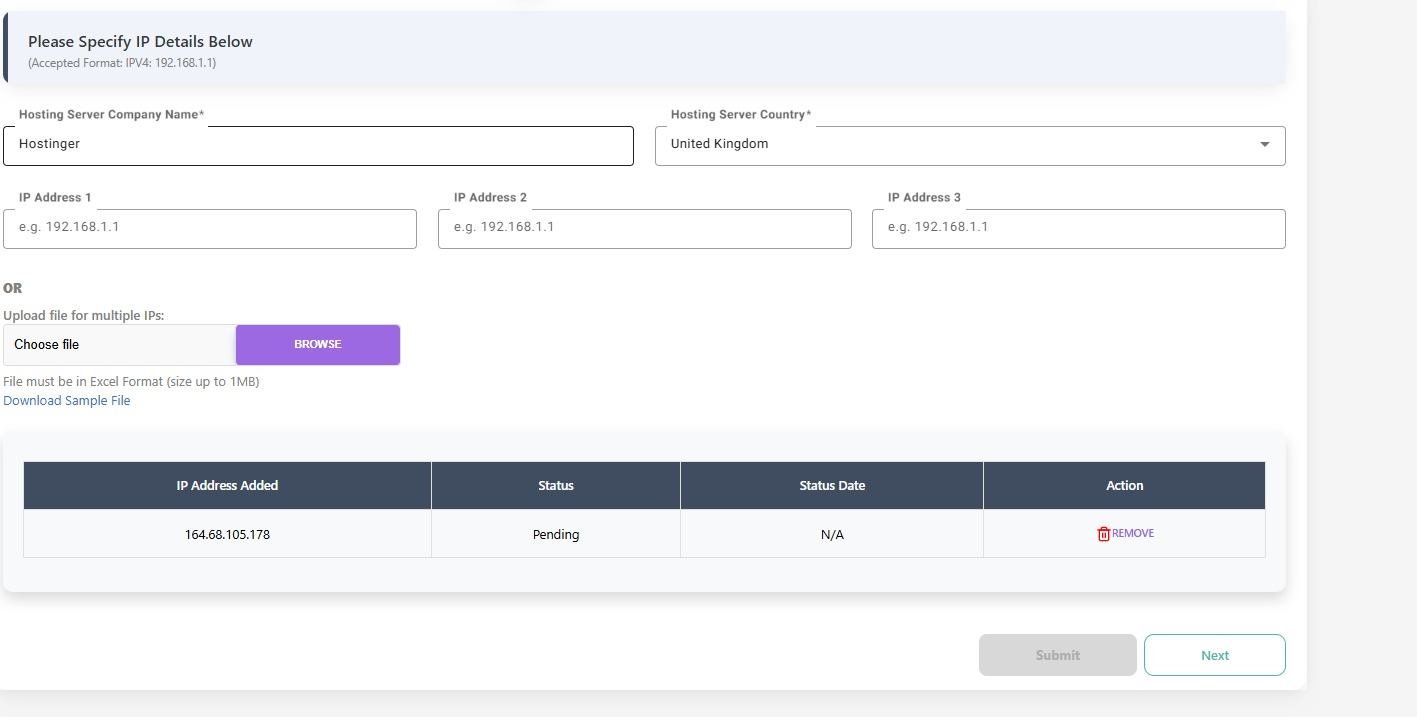
Once the wizard is finished, the portal will issue you a Sandbox API key (token).
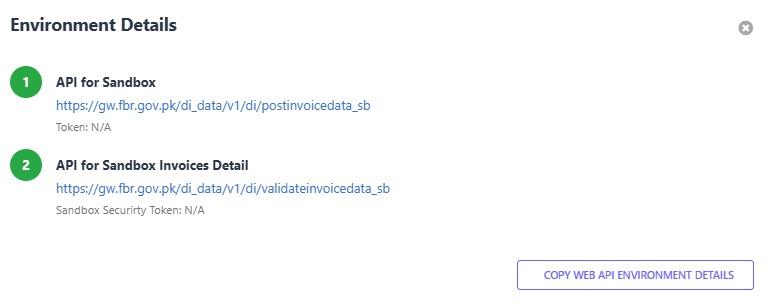
You will see the Sandbox key here.
This key lets you test your invoicing setup safely — nothing you submit in sandbox mode affects your real tax records.
Step 3: Enter Your Sandbox Key in FBRSTAPP
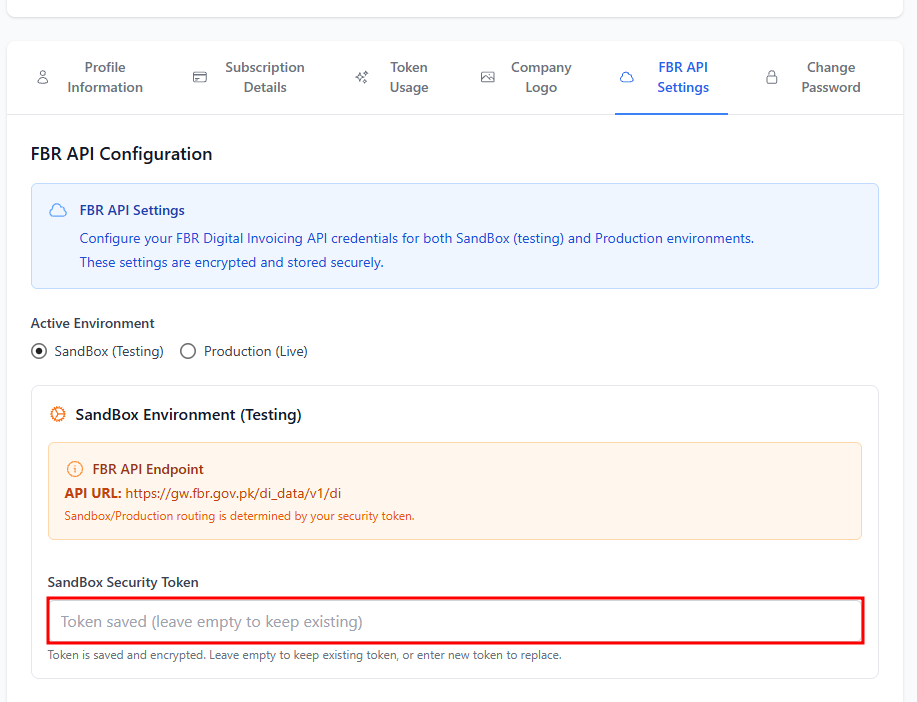
Back in FBRSTAPP, open the Settings page and find the FBR API Settings section. Paste your sandbox key into the Sandbox field and save. FBRSTAPP will now communicate with the FBR sandbox environment on your behalf.
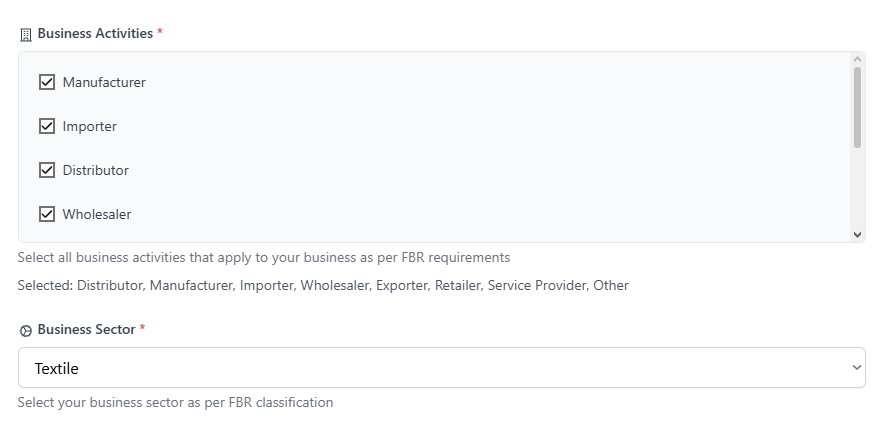
Step 4: Select the Same Business Categories as on the FBR Portal
This step is important: the business activity and sector categories you select in FBRSTAPP must match the ones you selected in the FBR Digital Invoicing portal. A mismatch between the two is one of the most common reasons sandbox scenarios fail, so double-check that both sides are identical before moving on.
Step 5: Complete All Scenarios in the Invoice Generator
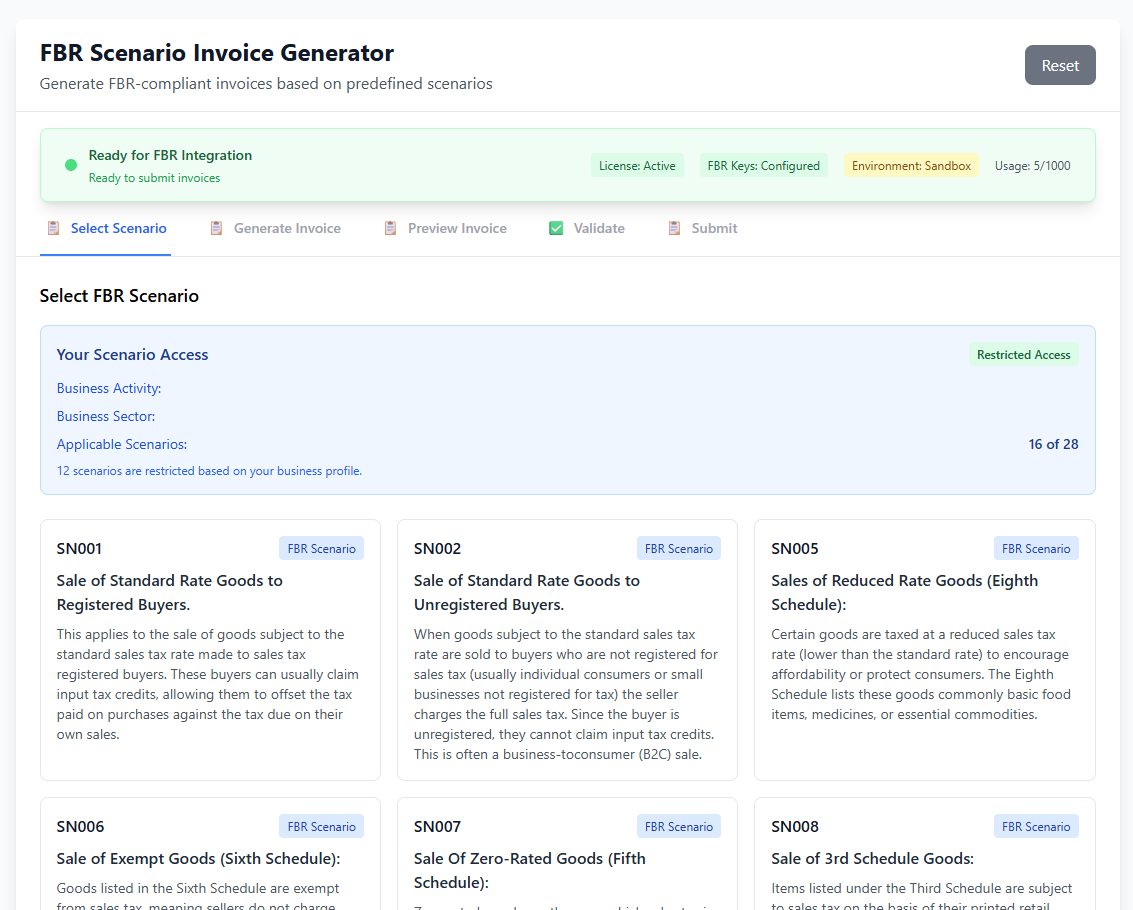
FBR requires every business to successfully test a set of invoice scenarios before granting production access. Open the Invoice Generator in FBRSTAPP and you will see the scenarios assigned to your business categories. Work through each one until every scenario shows as completed. FBRSTAPP guides you through the required fields for each scenario, so you always know exactly what FBR expects.
Step 6: Apply for Your Production Key
Once all of your sandbox scenarios are complete, return to the FBR Digital Invoicing portal and apply for your production key. Since your scenario testing is already done, this is normally a quick approval step.
Step 7: Add the Production Key — and You Are Good to Go
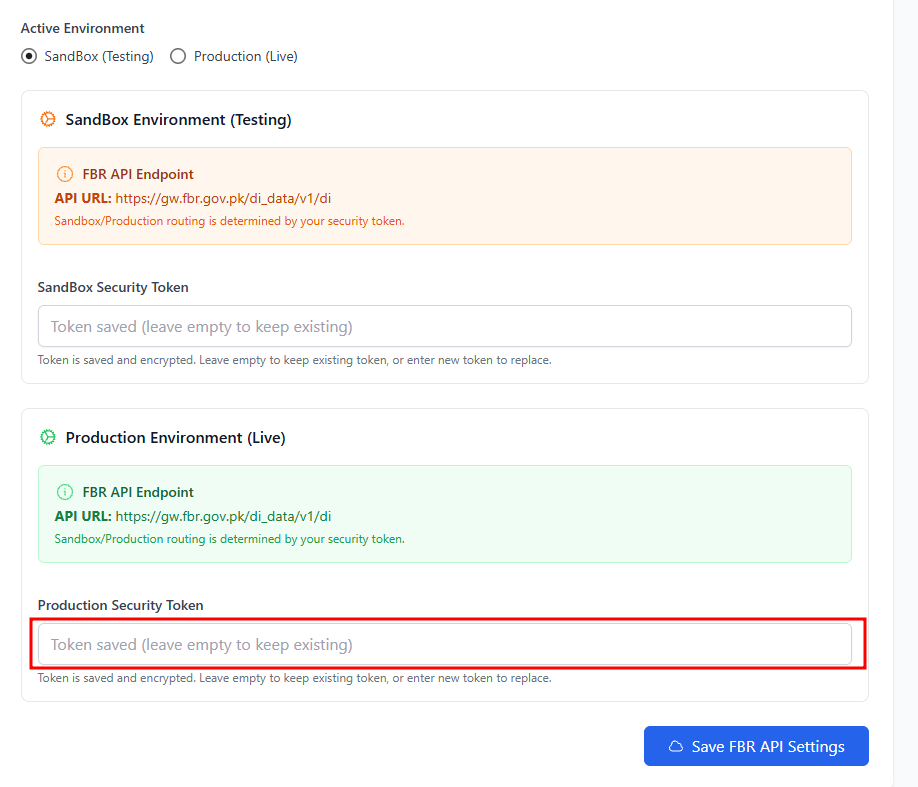
Finally, paste your production key into the FBR API Settings section of FBRSTAPP, right next to where you entered the sandbox key. That is it — your account is now live, and every invoice you create in FBRSTAPP is submitted directly to FBR as a legally valid digital invoice.
Need Help Along the Way?
If you get stuck at any step — whether it is a failing scenario, a category mismatch, or a question about your API keys — our support team is available right inside the app through Support Chat. You can also explore our other guides on the FBRSTAPP blog for detailed walkthroughs of digital invoicing, SROs, and FBR compliance.